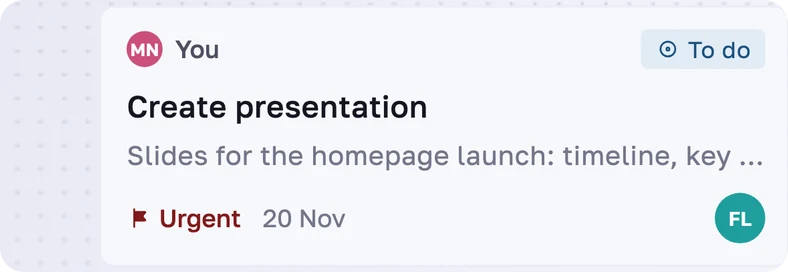
YouTo doIn progressOn holdComplete
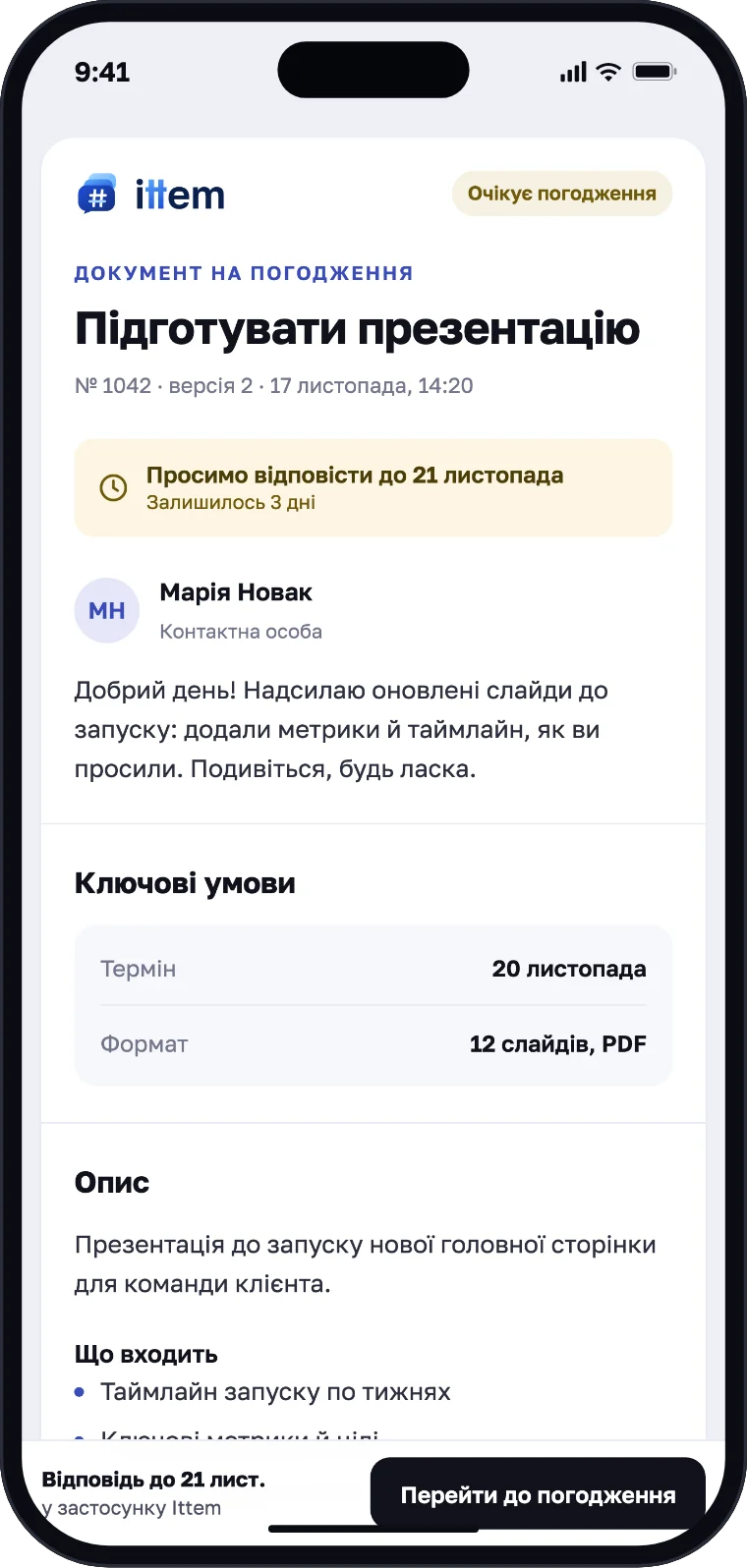
Create presentation
Slides for the homepage launch: timeline, key metrics and next steps.
Urgent20 Nov


Chats and i#em · iPhone, Android, Mac, Windows
Agreed on something in a chat? Turn it into an i#em in one line — with an assignee, a deadline and a priority, right next to the messages it came from.
Try it: type /item: in any chat
Why Ittem
In messengers, tasks get lost in the scroll. In task trackers, the context gets lost. Ittem keeps both: every i#em stays linked to the chat it was born in.
How it works
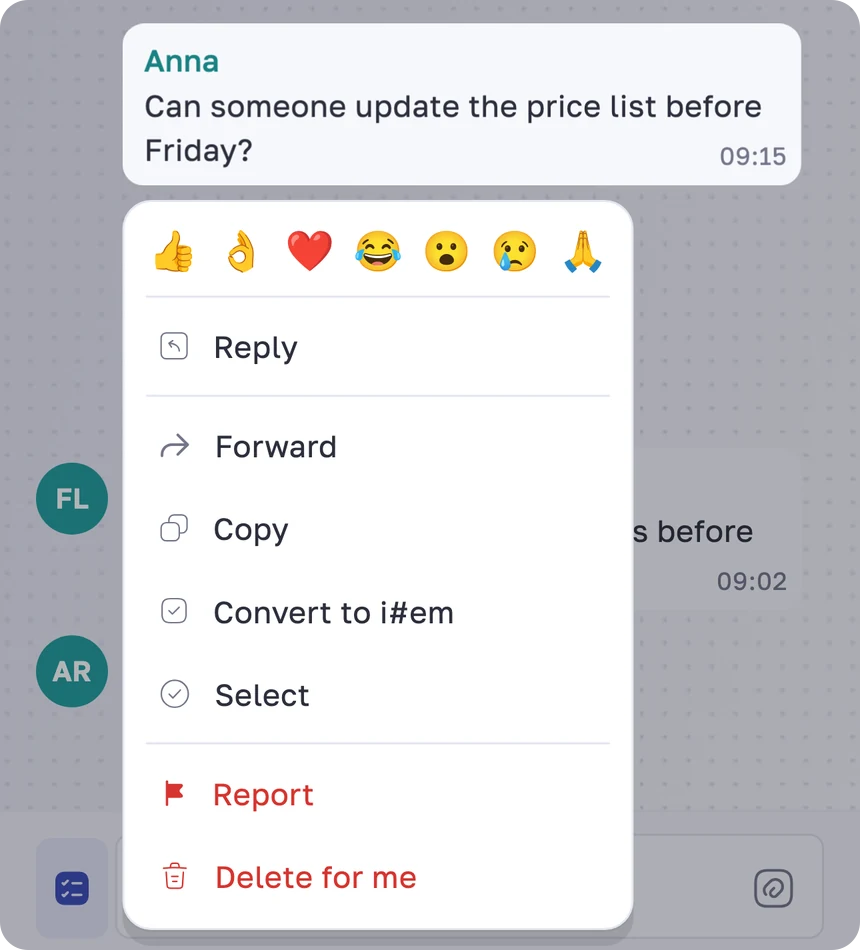
Type /item: in any chat — the app suggests the rest.
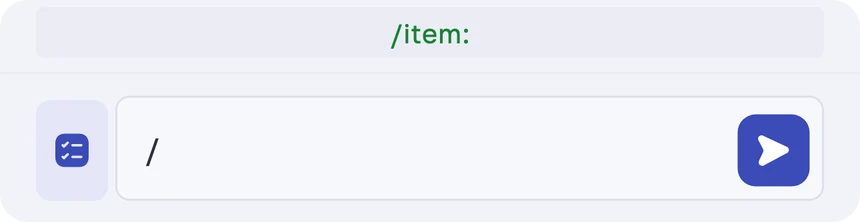
Type / in the message field and pick /item: from the list. Wrap the title in asterisks.
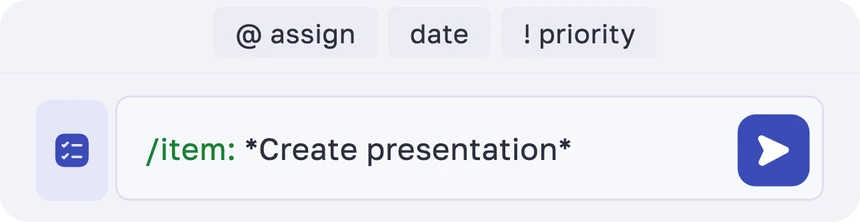
Hints above the keyboard add the @assignee, the date and the !priority. Need more? The button next to the field opens the full form.
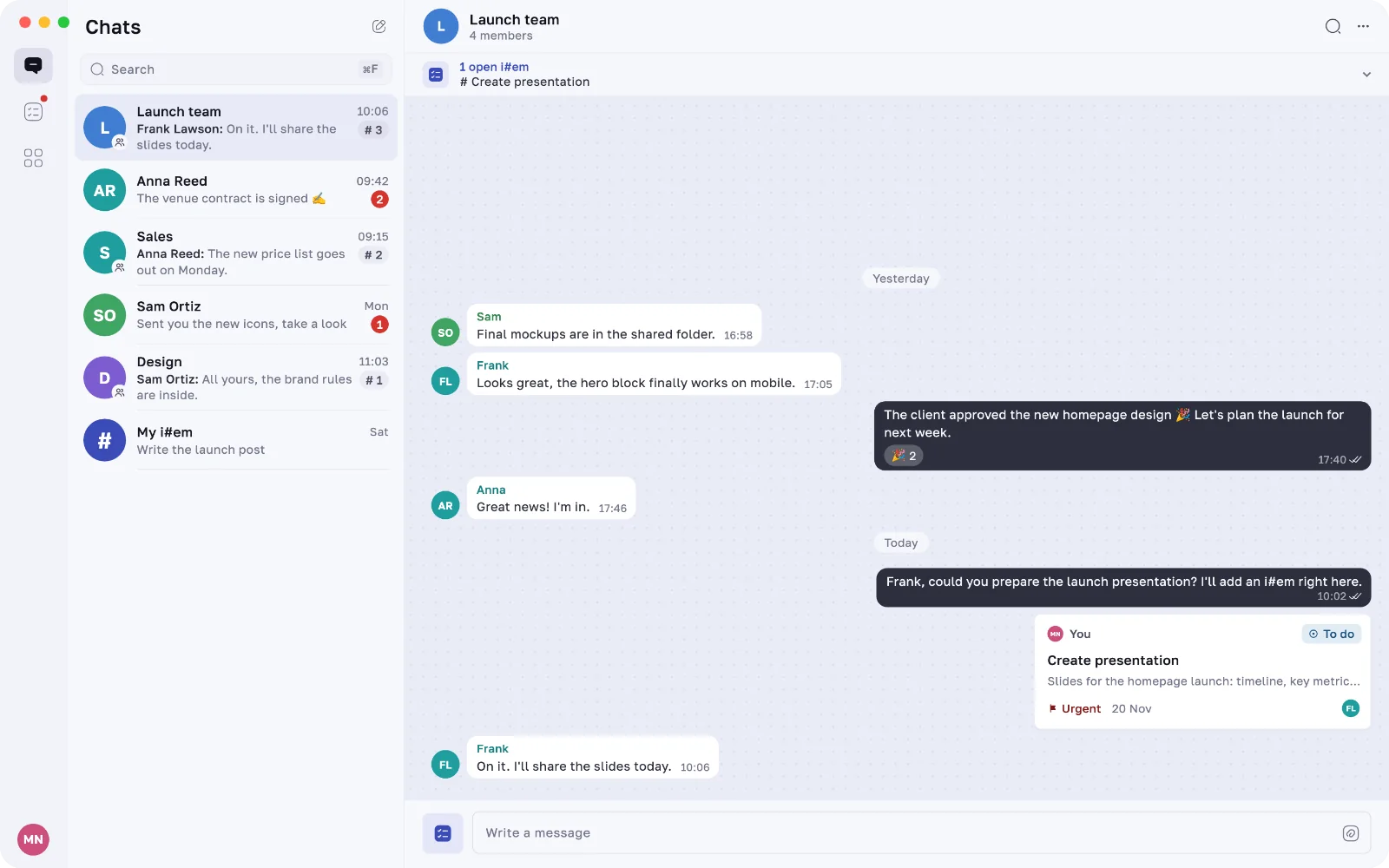
The i#em appears in the chat as a card and in the i#em list of everyone involved.
Inside the app
The main steps of an i#em, on the real screens of the mobile app.
An i#em arrives like a message, with its status, deadline, priority and assignees right on the card.
The full form has a name, a description, photos and files, assignees, a priority and a deadline.
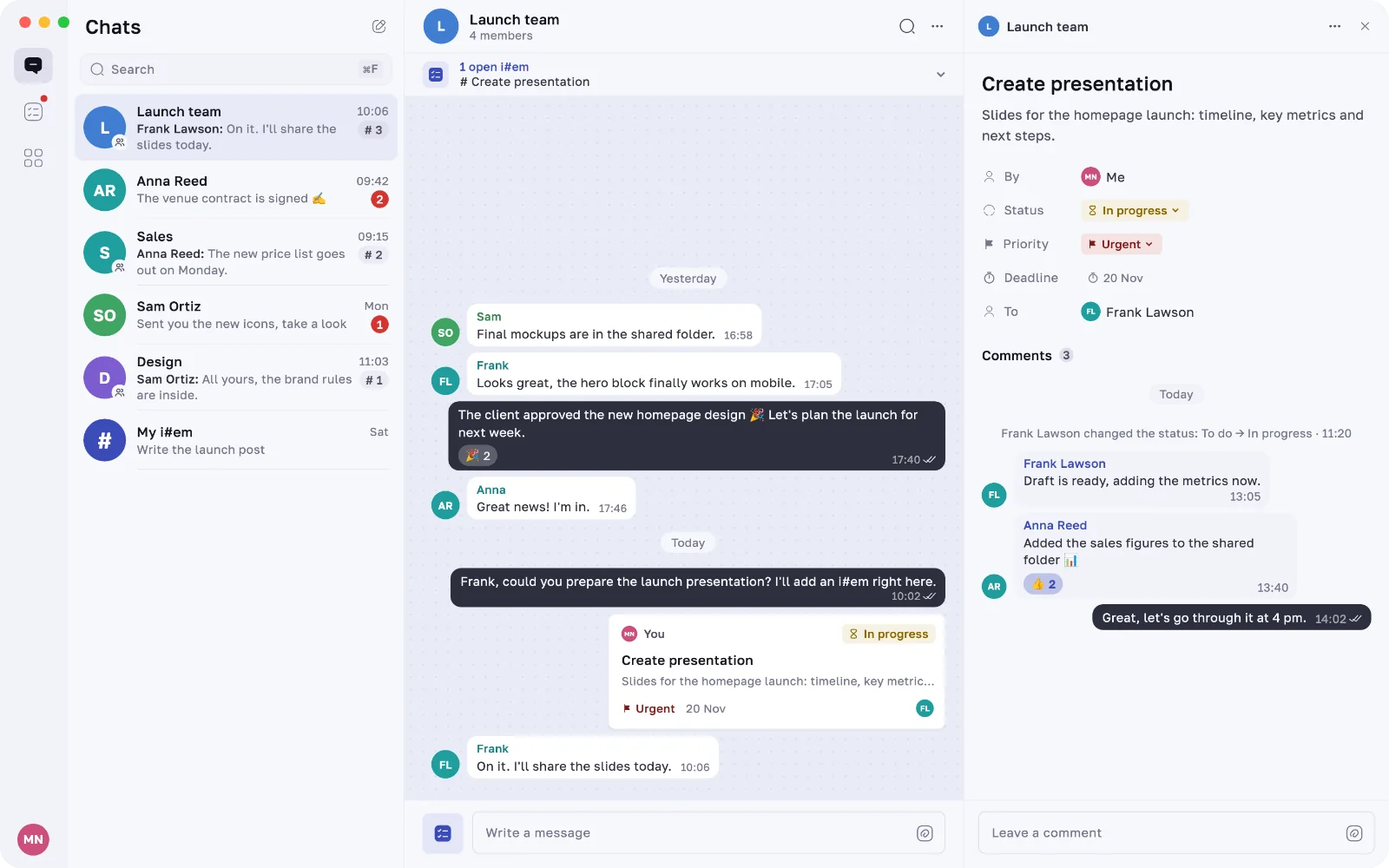
Status, deadline, files and the whole discussion of an i#em — in its own thread, not in the middle of the chat.
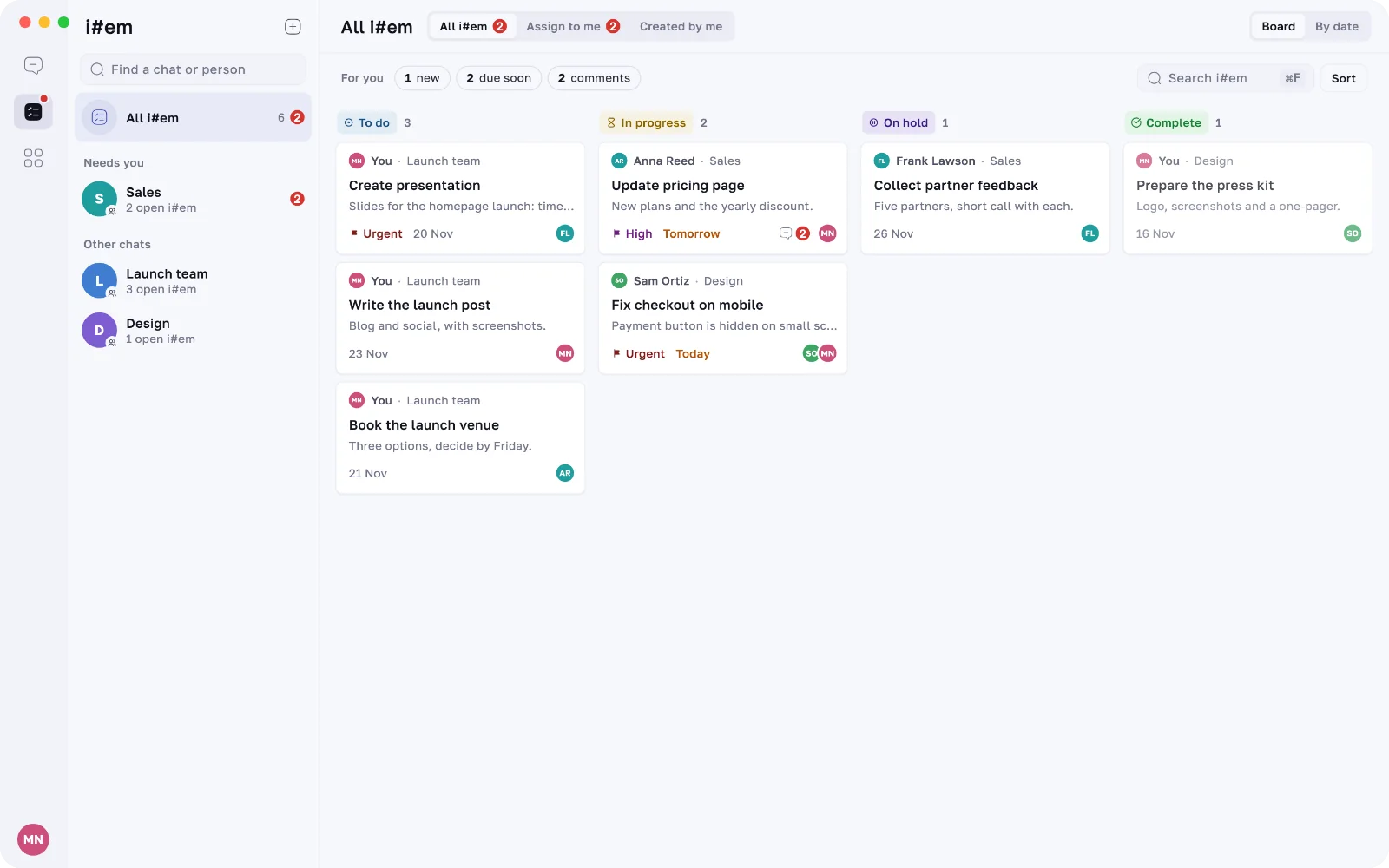
i#em from every chat, with what needs you on top: new ones, those due soon and fresh comments.
Share them in the chat or attach them to an i#em, and react to any message in a tap.
Started in the wrong chat, or it’s another team’s job now? Move the i#em where it belongs.
Work with clients
Your client doesn’t need the app. Send a link, and they open the i#em in a browser as a clean document.
Ittem for Mac and Windows
Everything stays in sync with your phone. The desktop app adds a board, keyboard shortcuts and drag and drop.
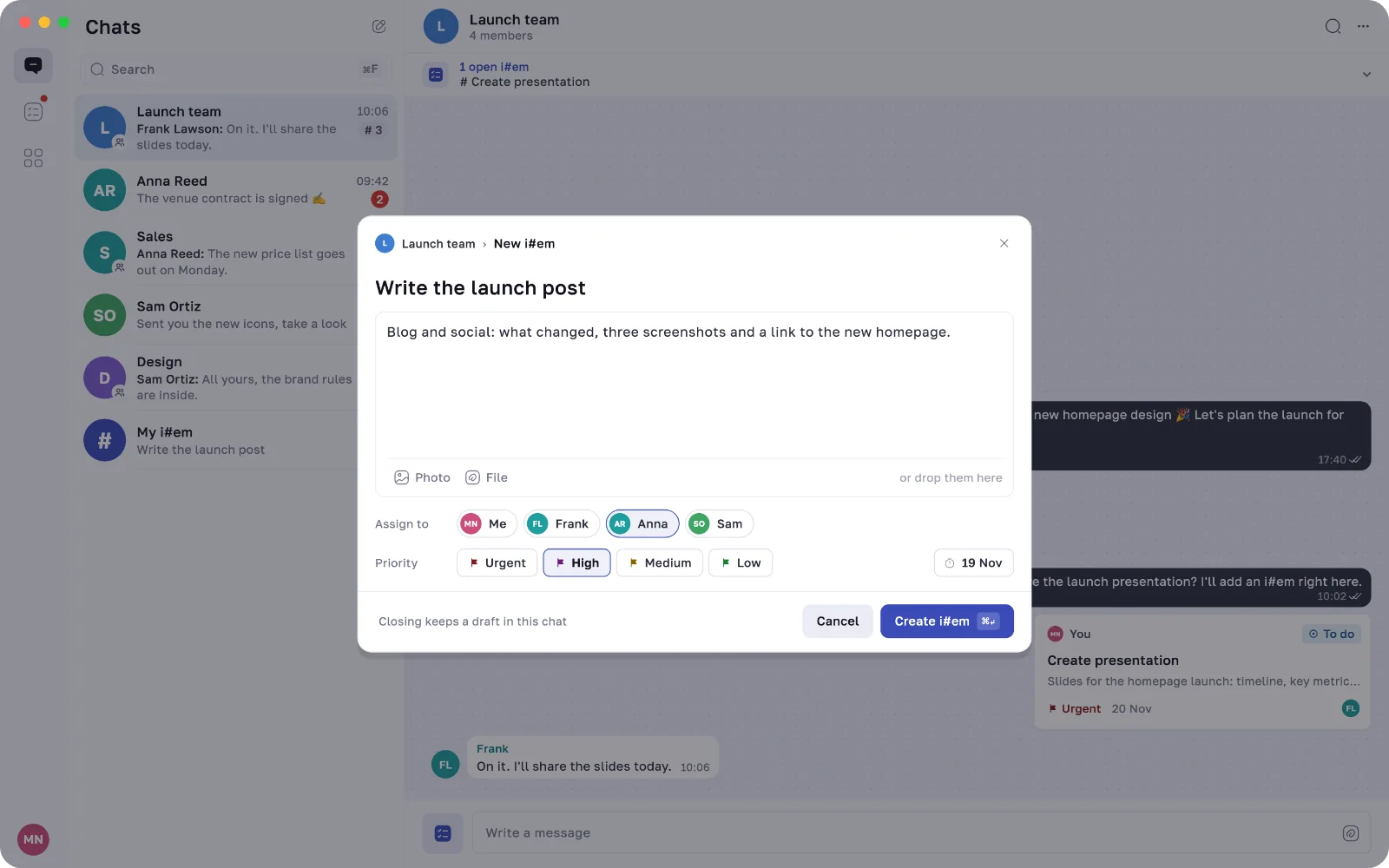
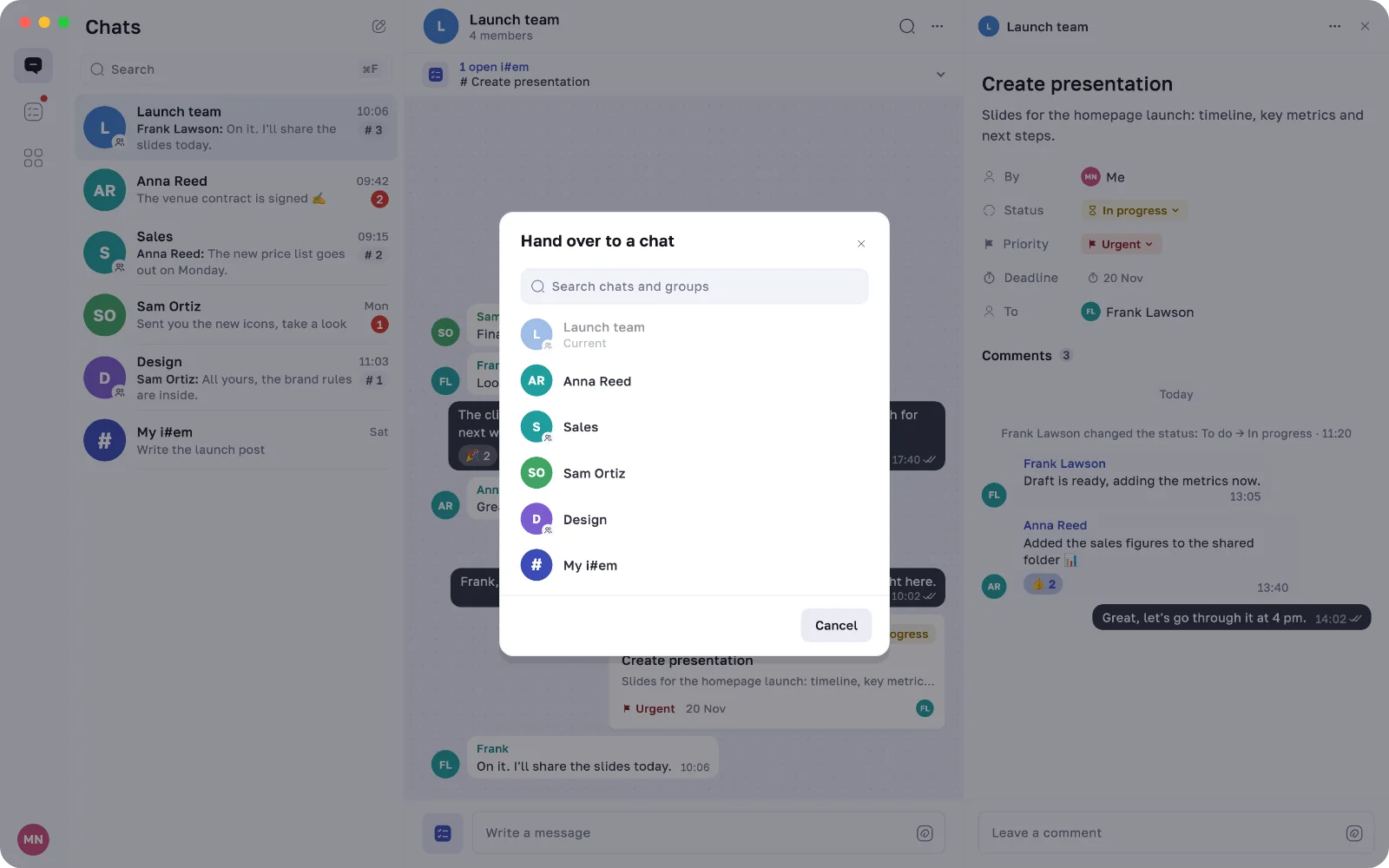
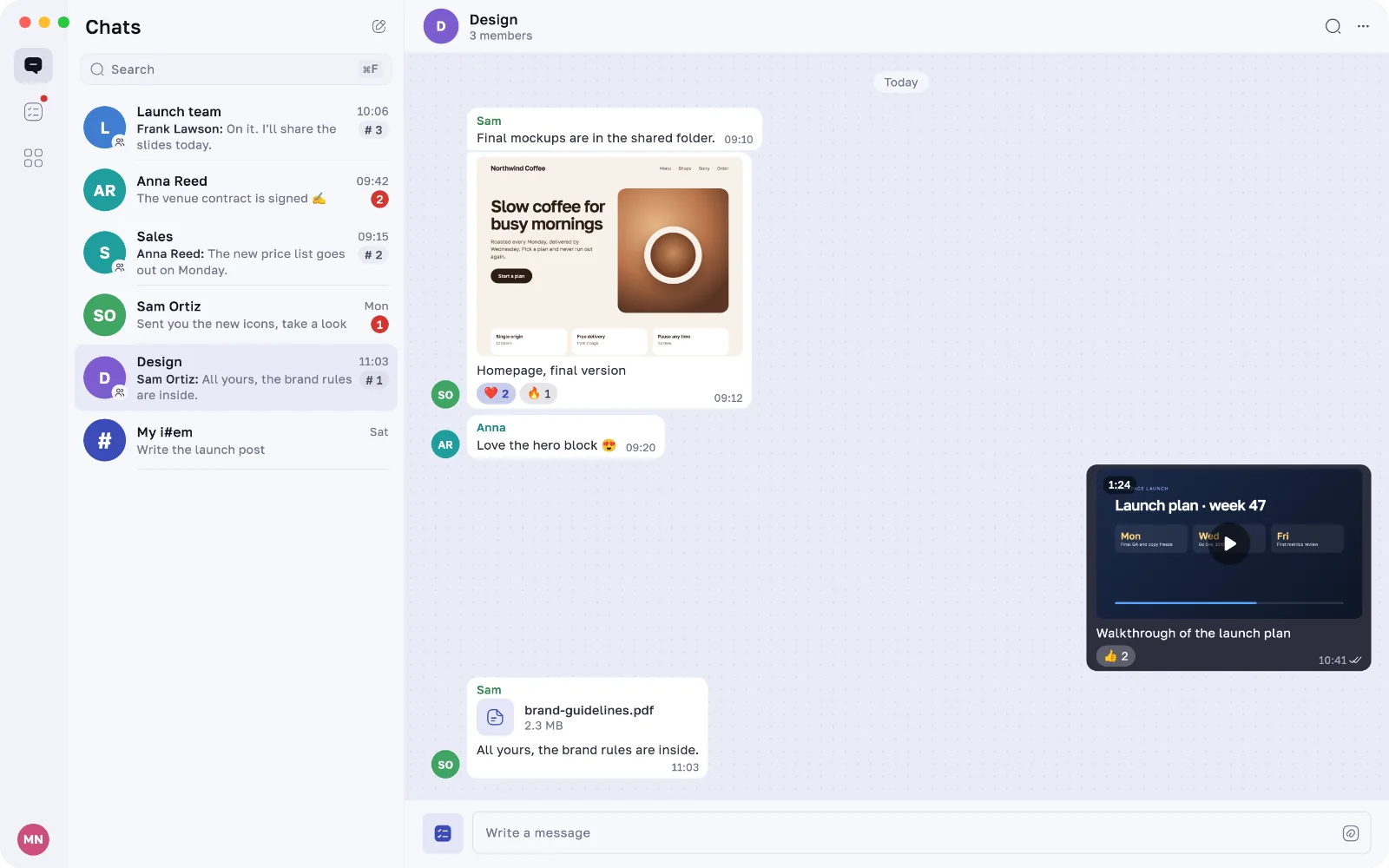
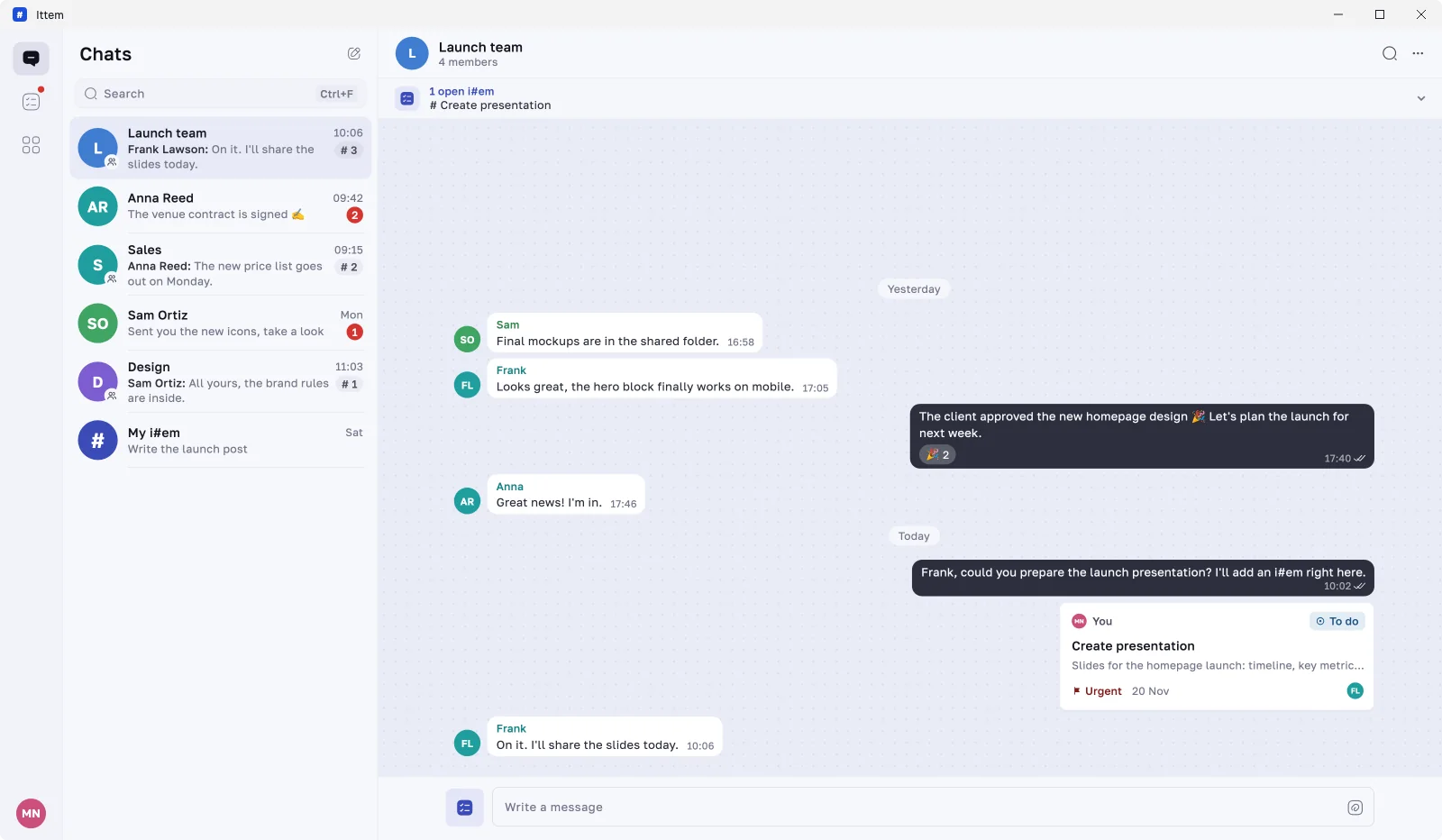
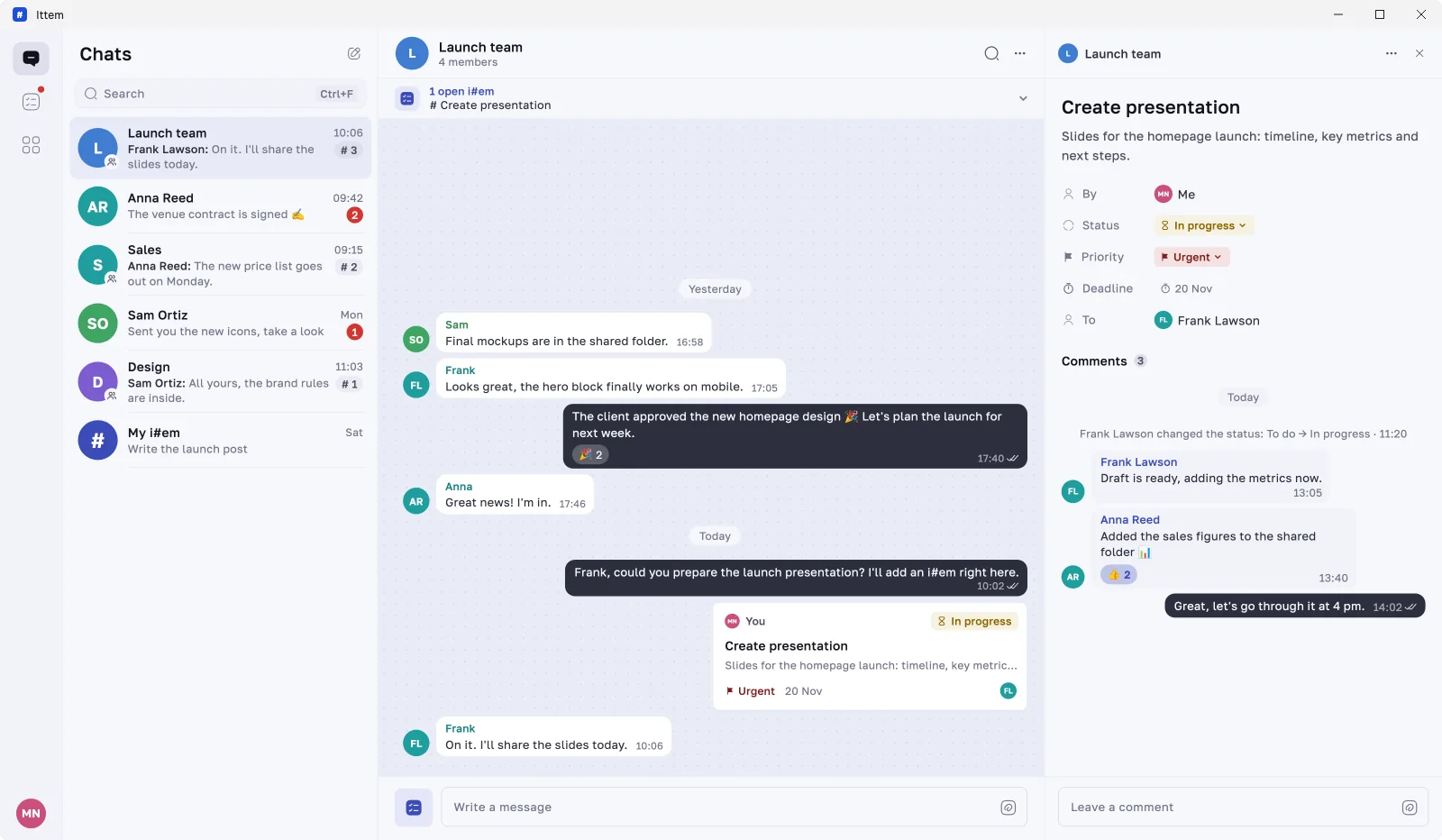
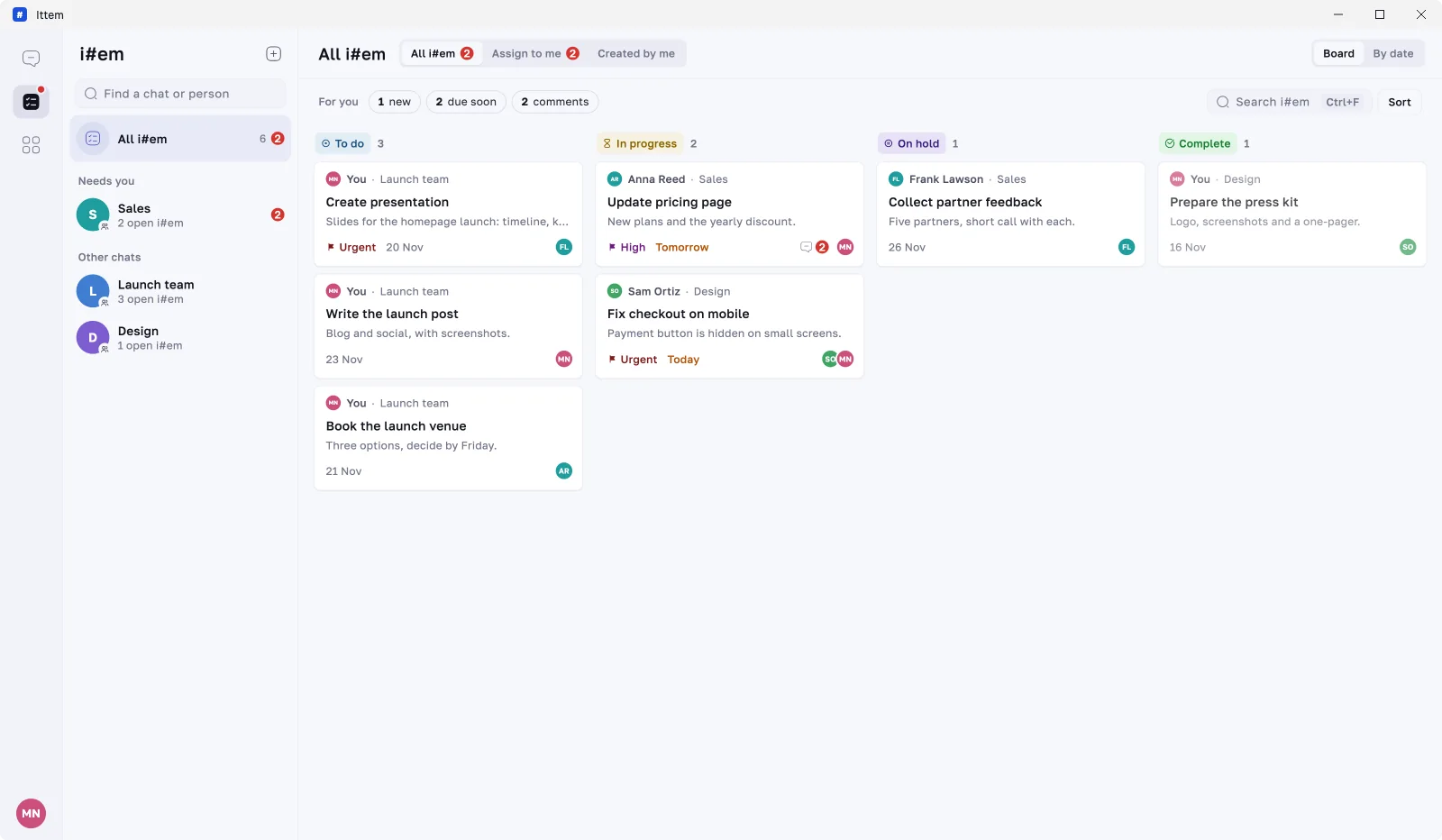
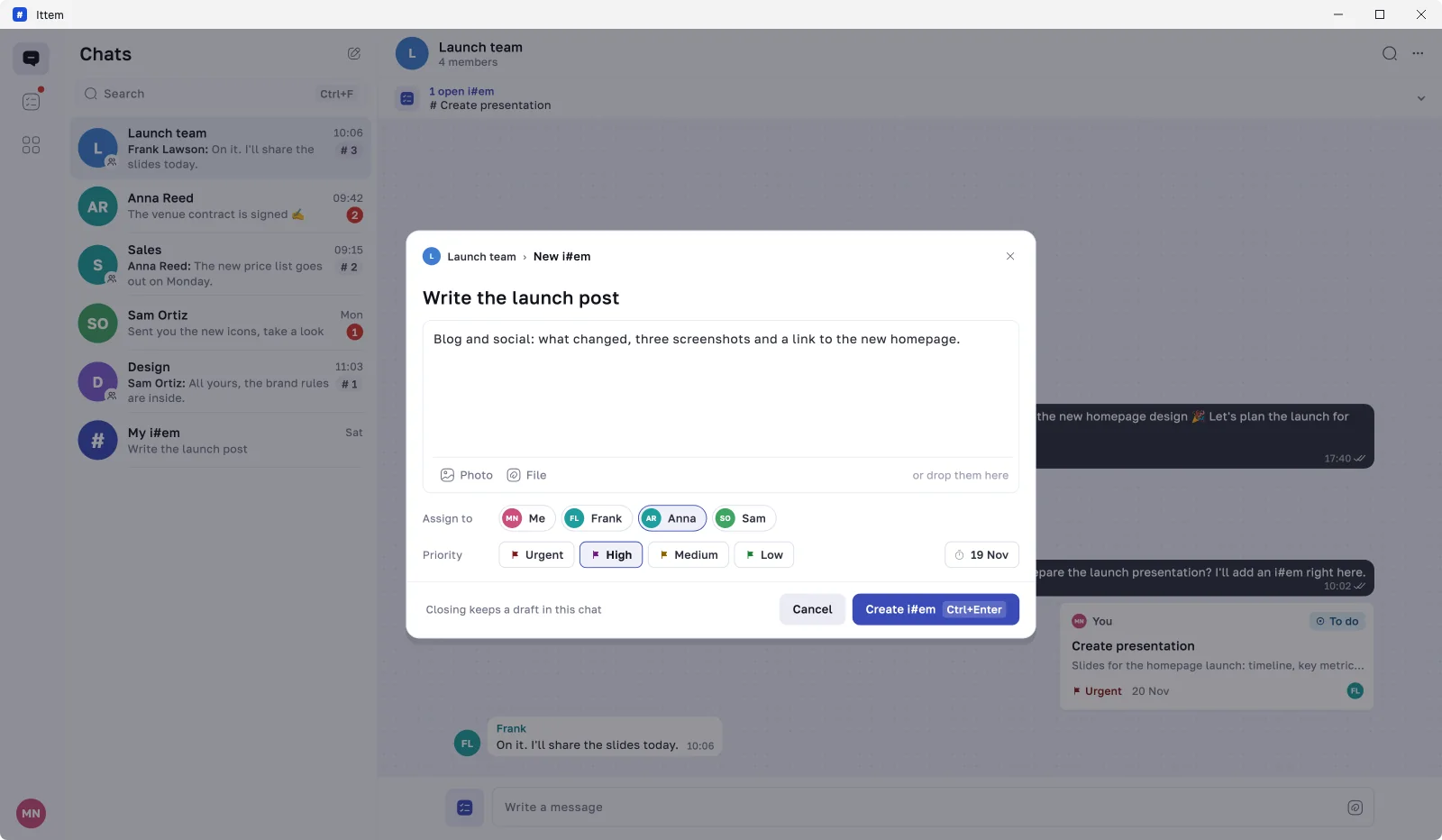
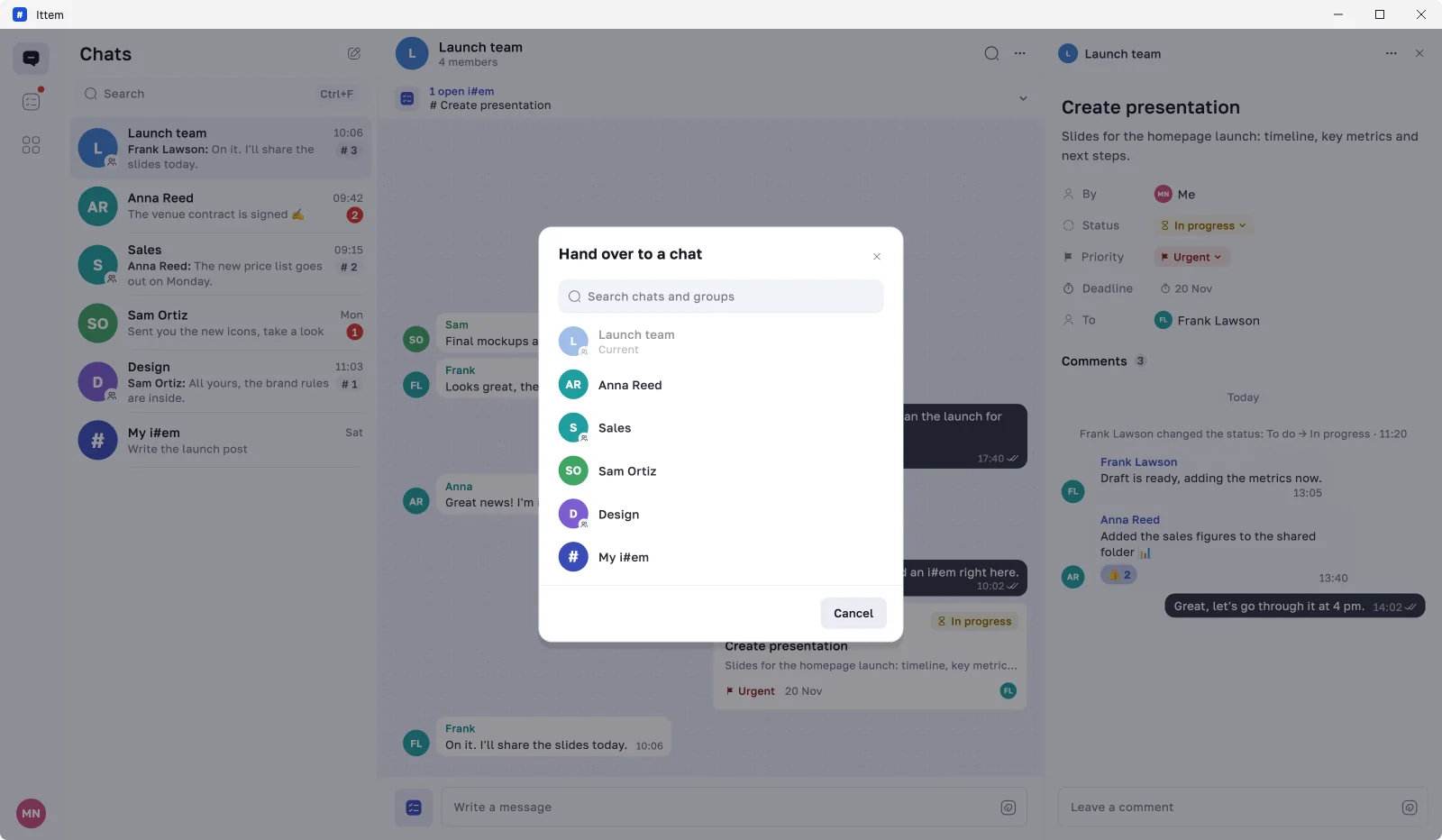
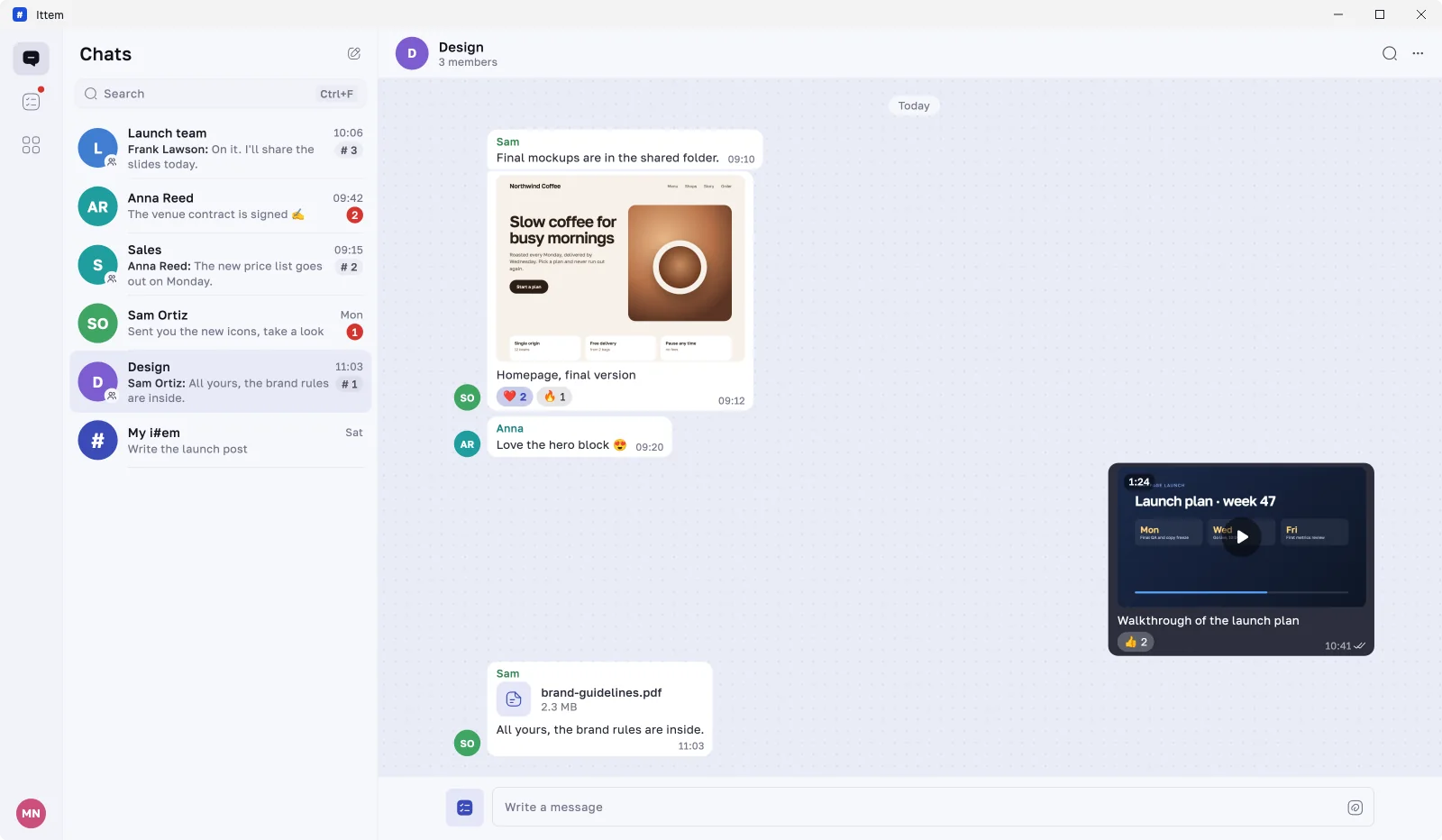
Everything in one place
i#em from every chat, filtered just the way you need.
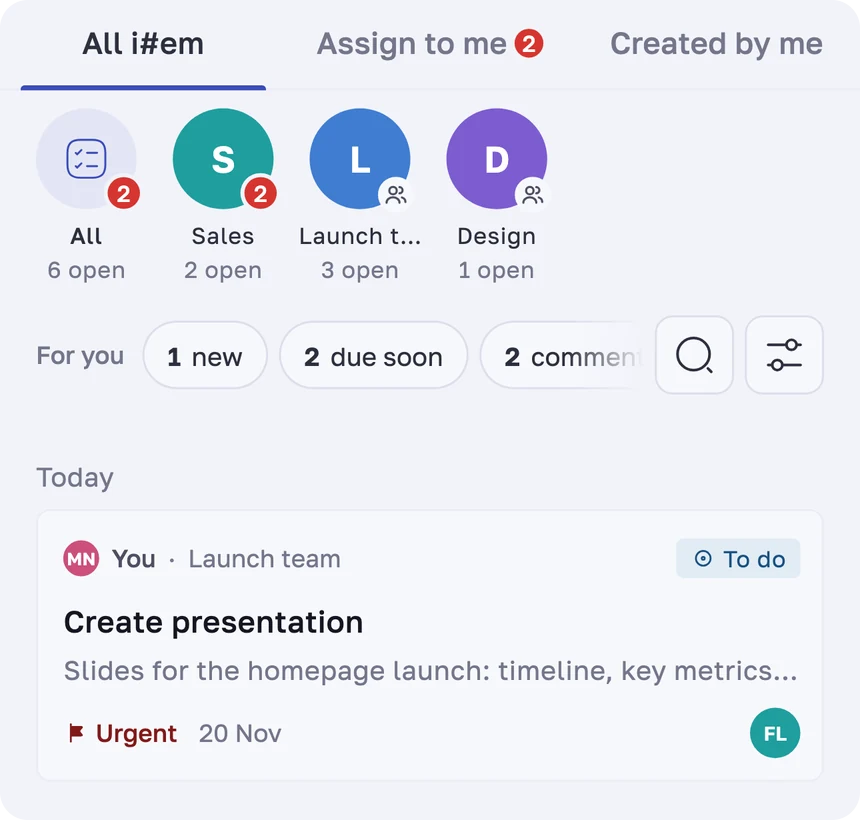
Change the status, and everyone in the chat sees it instantly.
Colour-coded, so the important things stand out.
Discuss an i#em in its own thread. The creator, assignees and anyone you mention get a notification.
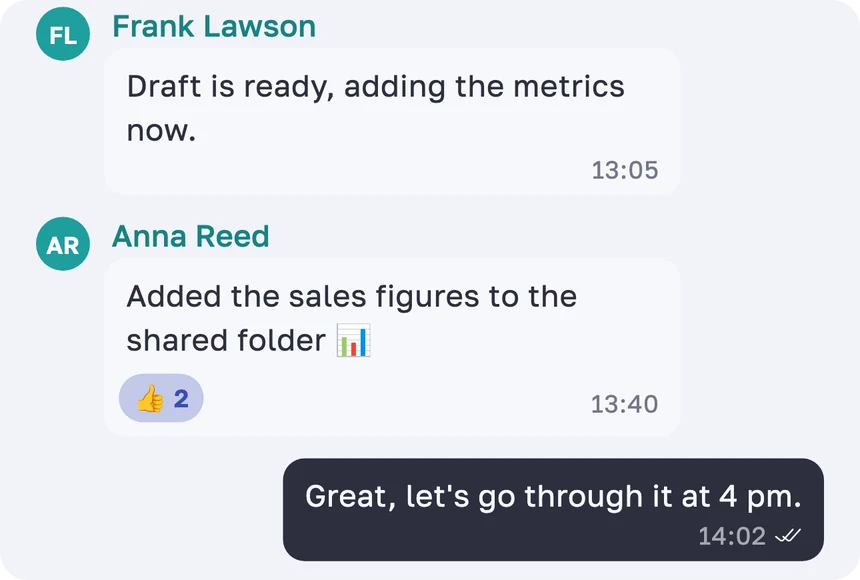
The app adapts to your style — and so does this page. Try the switch.
Share pictures, videos and documents right in the conversation.
Share a photo, file or link to Ittem — as a message or straight into a new i#em.
Find any message in a chat and forward it to other chats in a couple of taps.
Messages, comments and status changes arrive instantly, and a daily reminder brings back what’s still unread.
Started an i#em or a message and got distracted? It’s waiting in your drafts.
A private chat for your own i#em. Only you can see it.
React to a message and see who has already read it.
Read a chat on your computer, and your phone stays quiet.
FAQ
A messenger with built-in i#em. Chat one-on-one or in groups and turn any agreement into an i#em with an assignee, a deadline and a priority — without leaving the conversation.
Type /item: in the message field, tap the i#em button next to it to open the full form, long-press a message and choose Convert to i#em, or share a photo or file to Ittem from another app.
Yes. Assign it to yourself or to one or more members of the chat. They see it in the chat and in their i#em list under Assigned to me.
In the i#em tab. It gathers i#em from every chat, puts what needs you on top and filters them: All i#em, Assigned to me, Created by me.
Yes. Choose Send for approval: the client gets a link and opens the i#em in a browser as a document, no app needed. Comments, status and priority stay hidden.
Hand it over to another chat. Its description, files and your comments move with it, and the new chat sets the assignees again.
Yes, for Mac and Windows 10 or later. Open Ittem on your computer, then on your phone go to Settings → Linked devices, tap “Link a device” and scan the code. You can unlink a computer from your phone at any time.
With your phone number: enter it, confirm the code from the text message and add your name. No passwords to remember.
Ittem is free to use. A Premium plan is on the way; in-app purchases aren’t available yet, so you won’t be charged.
English, Ukrainian, Polish and Swedish — in a light and a dark theme.

Download Ittem, open a chat and type /item: — your first i#em is one line away.


